 weboxacademy | Premium WordPress Assets, SEO Training & Educational Videos
WordPress Migration: The Complete Guide to Moving Your Website Safely in 2026
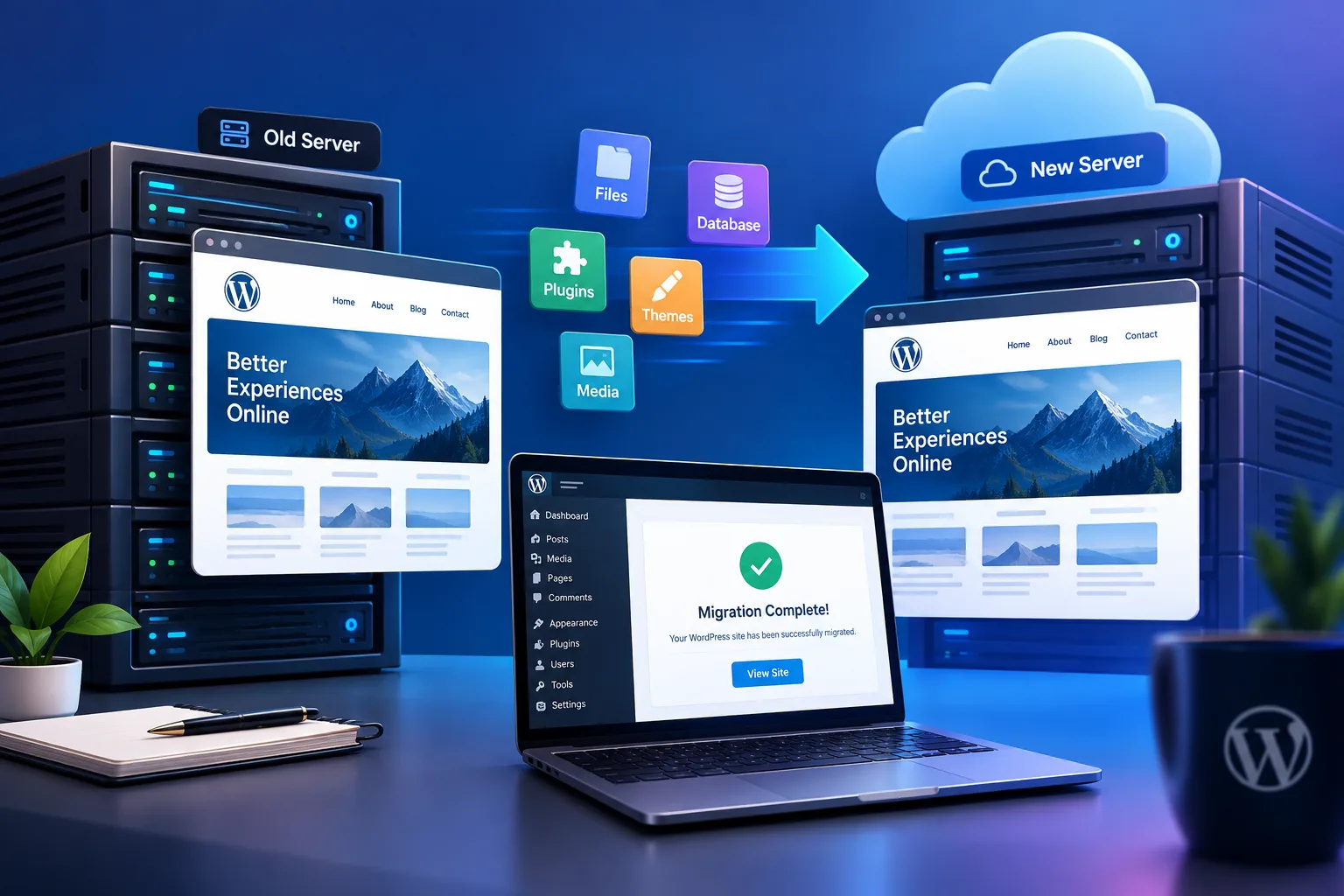
Moving a WordPress website to a new hosting provider, domain, server, or development environment can seem complicated. A migration involves more than simply copying your website files. Your database, media files, themes, plugins, configuration, URLs, and SEO settings all need to be transferred correctly.
A poorly planned migration can lead to broken links, missing images, database errors, downtime, indexing problems, or even a completely inaccessible website.
The good news is that WordPress migration can be performed safely with the right process and tools.
In this guide, you’ll learn how to migrate a WordPress website step by step, compare manual migration with migration plugins, avoid common problems, preserve SEO, and use a practical WordPress migration checklist.
What Is WordPress Migration?
WordPress migration is the process of moving a WordPress website from one environment to another.
This can include moving:
- A WordPress website to a new hosting provider
- A website to a new server
- A website to a new domain
- A local WordPress installation to live hosting
- A staging website to production
- A development website to another server
- A website from one hosting account to another
- A WordPress multisite installation to a different environment
A complete migration normally involves transferring both the WordPress files and database.
Your files can include:
- WordPress core files
- Themes
- Plugins
- Uploaded images
- Videos
- Documents
- Custom files
- Configuration files
Your database contains important information such as:
- Posts
- Pages
- Users
- Comments
- Plugin settings
- Theme settings
- WooCommerce data
- Site configuration
- Metadata
Because both components are important, simply downloading your WordPress folder is not enough for a complete migration.
When Should You Migrate a WordPress Website?
There are several reasons why website owners decide to migrate WordPress.
1. Moving to a Better Hosting Provider
One of the most common reasons for migration is poor hosting performance.
If your website experiences slow server response times, frequent downtime, resource limitations, or poor scalability, moving to a different hosting environment may be appropriate.
After migration, you can also improve your website’s front-end performance using a dedicated caching solution such as WP Rocket.
Internal link opportunity: Link the anchor text WP Rocket for WordPress performance to the WeboxAcademy WP Rocket product page.
2. Changing Your Domain Name
You may want to change your domain because of:
- Rebranding
- Business restructuring
- A shorter domain name
- International expansion
- A new company name
Moving to a new domain requires additional SEO considerations because your old URLs need to redirect properly to the corresponding new URLs.
3. Moving From Development to Production
Developers frequently build WordPress websites on local machines or staging servers before publishing them.
Once development is complete, the website needs to be migrated to the production server.
4. Creating a Staging Environment
A staging website allows you to test:
- New plugins
- WordPress updates
- Theme changes
- PHP versions
- Custom code
- Design changes
before applying them to the live website.
5. Website Redesign
A redesign may require moving an existing WordPress installation to a new server or development environment.
During the process, preserving existing URLs and SEO settings should be a priority.
What Should You Back Up Before WordPress Migration?
Before starting any migration, create a complete backup.
Your backup should include both:
WordPress Files
Make sure you have a copy of:
/wp-content/- Themes
- Plugins
- Uploads
- Custom files
wp-config.php
WordPress Database
Your database contains the content and configuration that make your website function.
A backup without the database is not a complete WordPress backup.
For websites that need regular backups as well as migration functionality, a dedicated WordPress backup and migration solution can simplify the process.
Internal link opportunity: Link WordPress backup and migration solution to the WeboxAcademy Duplicator Pro product page.
Create a Recovery Point
Before making significant changes, keep an untouched backup of the original website.
Do not delete the original website immediately after migration.
Keep it available until you have verified:
- Pages
- Posts
- Images
- Forms
- User accounts
- WooCommerce functionality
- Plugins
- Internal links
- Redirects
- Analytics
- Search engine visibility
Manual WordPress Migration vs Migration Plugins
There are two primary approaches to WordPress migration.
Manual WordPress Migration
A manual migration generally involves:
- Downloading WordPress files
- Exporting the database
- Creating a new database
- Uploading WordPress files
- Importing the database
- Updating configuration
- Changing URLs if necessary
- Testing the website
This approach provides considerable control, but it requires technical knowledge.
You may need access to:
- FTP/SFTP
- phpMyAdmin
- Hosting control panel
- MySQL/MariaDB
- DNS settings
- Server configuration
Manual migration can be useful for experienced developers, but it introduces more opportunities for human error.
WordPress Migration Plugins
A migration plugin automates many of the technical steps.
Depending on the plugin, it may package:
- Database
- Media
- Themes
- Plugins
- WordPress files
- Configuration
into a migration package that can be transferred to another server.
For many website owners, this is easier than manually exporting and importing everything.
If you’re looking for more WordPress tools, you can also explore the WordPress plugins collection at WeboxAcademy.
Best WordPress Migration Plugins in 2026
Several WordPress migration plugins are available, and the right option depends on the size and complexity of your website.

1. Duplicator Pro
Duplicator Pro is designed for WordPress backup, cloning, migration, and website transfer workflows.
It can be particularly useful when you need to move an entire WordPress website between environments.
Typical use cases include:
- Host-to-host migration
- Domain migration
- Website cloning
- Staging environments
- Backup and recovery
- Large website migration
- Server-to-server transfers
Internal link: Use the exact anchor Duplicator Pro WordPress backup and migration plugin and link it to the WeboxAcademy Duplicator Pro product page.
For users who regularly migrate WordPress websites, having a dedicated migration tool can reduce the number of manual steps involved in the process.
2. All-in-One WP Migration
All-in-One WP Migration is another popular WordPress migration solution.
It is designed to export and import WordPress websites and can transfer:
- Database
- Media
- Themes
- Plugins
It is often used when website owners want a relatively straightforward migration workflow.
However, available functionality can depend on the version and extensions being used, so always check the current documentation before planning a large migration.
3. WPvivid
WPvivid provides backup and migration functionality for WordPress websites.
It can be useful for website owners who want to combine:
- Backups
- Migration
- Website staging
- Restoration
in one WordPress solution.
4. WP Migrate
WP Migrate focuses heavily on database migration and synchronization workflows.
It can be particularly relevant for developers working with:
- Local development environments
- Staging websites
- Production websites
- Database synchronization
5. Migrate Guru
Migrate Guru is another migration-focused solution designed to simplify website transfers.
It can be useful when moving WordPress websites between hosting environments, especially when users want to avoid handling the entire migration process manually.
WordPress Migration Plugin Comparison
| Plugin | Main Use Case | Suitable For |
|---|---|---|
| Duplicator Pro | Backup, cloning and migration | Site owners, agencies and developers |
| All-in-One WP Migration | Website export/import | General WordPress users |
| WPvivid | Backup and migration | Website owners |
| WP Migrate | Database migration | Developers |
| Migrate Guru | Website migration | Host-to-host transfers |
Plugin capabilities, limits, pricing, and supported features can change, so verify the current documentation before choosing a solution for a production migration.
How to Migrate WordPress to a New Host
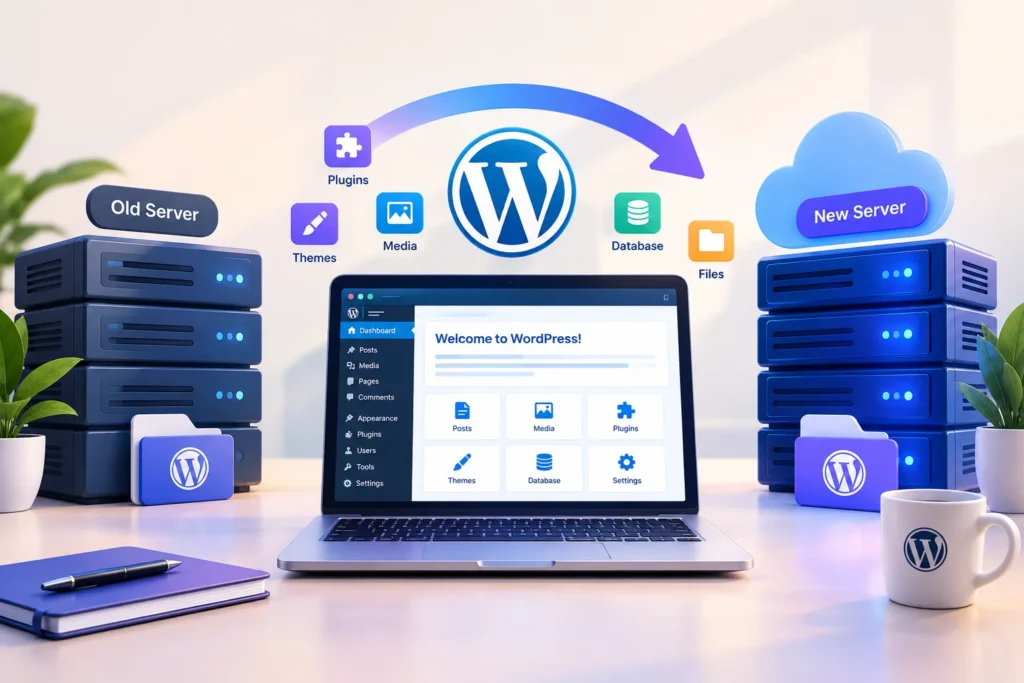
Moving WordPress to a new hosting provider is one of the most common migration scenarios.
Here is a practical workflow.
Step 1: Prepare the New Hosting Account
Set up your new hosting environment before changing your DNS.
Verify:
- PHP version
- Database availability
- Storage
- SSL support
- Domain configuration
- Server resources
Do not point your domain to the new server until you have prepared the migration.
Step 2: Create a Complete Backup
Before transferring anything, create a full backup of the original website.
Keep the backup somewhere separate from the current hosting account.
This gives you a recovery option if something goes wrong.
Step 3: Create the Migration Package
If you’re using a migration plugin, generate the required migration package.
Depending on the tool, this may include:
- Website files
- Database
- Media
- Themes
- Plugins
- Configuration information
Download or store the package securely.
Step 4: Install WordPress on the New Server
Some migration tools require a clean WordPress installation.
Others can work with an empty directory or provide their own installer workflow.
Follow the documentation of the migration tool you’re using.
Step 5: Import the Website
Upload the migration package to the new server and complete the import process.
The exact process depends on the plugin.
With a package-based migration workflow, the tool may automatically extract the files and restore the database.
Step 6: Test the Website Before Changing DNS
This is one of the most important steps.
Before changing your domain’s DNS records, test:
- Homepage
- Pages
- Blog posts
- Images
- Navigation
- Contact forms
- Login
- Search
- WooCommerce checkout
- User registration
- Plugins
- Theme functionality
If possible, use a temporary domain, hosts-file configuration, or another staging method to test the new server.
Step 7: Update DNS
Once the new website is working correctly, update your DNS records to point the domain to the new server.
DNS propagation can take time depending on the DNS provider and configuration.

Keep the old website online during the transition whenever possible.
How to Move WordPress to a New Domain
Moving to a new domain is more complicated than simply changing the WordPress URL.
Suppose your website changes from:
old-domain.com
to:
new-domain.com
You need to make sure that URLs stored throughout WordPress are updated correctly.
Step 1: Back Up the Original Website
Create a complete backup before changing the domain.
Step 2: Transfer the Website
Move the WordPress files and database to the new environment.
Step 3: Update WordPress URLs
Update the relevant WordPress URL settings.
Depending on your setup, URLs may also exist inside:
- Post content
- Widgets
- Theme settings
- Plugin settings
- Custom fields
- Serialized database data
This is why blindly replacing text inside the database can be dangerous.
Use a migration tool or a database-aware search-and-replace method that understands WordPress data structures.
Step 4: Set Up 301 Redirects
Create redirects from the old URLs to their corresponding new URLs.
Avoid redirecting every old URL to the homepage when a more specific destination exists.
For example:
old-domain.com/about-us/
should ideally redirect to:
new-domain.com/about-us/
rather than simply sending every visitor to the homepage.
Step 5: Update Internal Links
Search your website for references to the old domain.
Check:
- Internal links
- Images
- Canonical URLs
- Open Graph URLs
- Structured data
- XML sitemaps
- Custom scripts
- CSS
- JavaScript
- Plugin settings
How to Migrate WordPress Without Downtime
Completely eliminating downtime is difficult to guarantee, but you can minimize disruption with careful planning.
A low-downtime migration typically follows this process:
1. Prepare the New Server
Set up the new environment before touching DNS.
2. Copy the Existing Website
Transfer the website while the original remains online.
3. Test the New Environment
Verify functionality before switching traffic.
4. Lower DNS TTL in Advance
If your DNS provider allows it, lowering TTL before migration can help reduce the time some DNS resolvers cache the old destination.
5. Perform a Final Database Sync
For websites with frequently changing data, perform a final synchronization close to the DNS switch.
This is especially important for:
- WooCommerce stores
- Membership websites
- Forums
- Community websites
- Websites with frequent publishing
6. Switch DNS
Point the domain to the new server.
7. Monitor Both Servers
Keep the old server available until you’re confident that the migration is complete.
WordPress Migration Checklist
Use this checklist before declaring a migration complete.
Before Migration
-
Full website backup created
-
Database backup created
-
New hosting account prepared
-
PHP version checked
-
SSL configuration prepared
-
DNS settings documented
-
Current plugins documented
-
Current theme documented
-
Analytics configuration documented
-
Important URLs recorded
During Migration
-
WordPress files transferred
-
Database transferred
-
wp-config.phpconfigured -
URLs updated if necessary
-
Search-and-replace completed safely
-
SSL enabled
-
Plugins checked
-
Theme checked
After Migration
-
Homepage tested
-
Posts tested
-
Pages tested
-
Images tested
-
Forms tested
-
Login tested
-
Search tested
-
WooCommerce tested
-
Internal links tested
-
Redirects tested
-
Canonical URLs checked
-
XML sitemap checked
-
Robots.txt checked
-
Analytics checked
-
Search Console checked
-
Website speed checked
-
Backup system configured
Common WordPress Migration Errors
Even when using a migration plugin, problems can occur.
1. Error Establishing a Database Connection
This usually indicates a problem connecting WordPress to the database.
Check:
- Database name
- Database username
- Database password
- Database host
- Database privileges
Review your wp-config.php configuration.
2. Images Are Missing
If images don’t appear after migration, verify that the uploads directory was transferred correctly.
Also check whether image URLs still point to the old domain.
3. Internal Links Point to the Old Domain
This commonly happens after a domain migration.
Run a site-wide search for the old domain and update references carefully.
4. 404 Errors
Broken URLs can appear if:
- Permalink settings changed
- URL structures changed
- Redirects weren’t configured
- Files weren’t transferred correctly
Go to WordPress permalink settings and save the settings again if appropriate. This can regenerate rewrite rules in many common configurations.
5. SSL Problems
After migration, make sure the website loads consistently over HTTPS.
Check for:
- Mixed content
- Incorrect canonical URLs
- HTTP resources
- Redirect loops
6. Plugin Conflicts
A migration can expose compatibility issues that weren’t obvious before.
Test important plugins individually.
If you’re managing several WordPress extensions, keeping your plugin stack organized is important. WeboxAcademy’s WordPress plugin collection can also be used as a reference when evaluating WordPress functionality and extensions.
WordPress Migration and SEO
A website migration can affect organic search performance if URLs or technical SEO settings are changed incorrectly.
Migration SEO should therefore be treated as a separate checklist.
Preserve Existing URLs When Possible
If you don’t need to change the URL structure, don’t change it during the migration.
Keeping the same URLs reduces unnecessary redirects and makes the transition easier to manage.
Use 301 Redirects for URL Changes
If URLs must change, create relevant permanent redirects.
Map old URLs to their closest equivalent new URLs.
Check Canonical URLs
After migration, inspect canonical tags.
Make sure they reference the correct domain and URL.
Update XML Sitemap
Generate or verify your XML sitemap after the migration.
The sitemap should contain the correct URLs.
Check Robots.txt
Make sure the new server isn’t accidentally blocking search engines.
This is particularly important when moving a staging website to production.
Monitor Search Console
After migration, monitor your search performance and indexing reports.
Look for:
- 404 errors
- Redirect problems
- Indexing issues
- Unexpected URL changes
- Security warnings
If you’re working on a broader WordPress SEO strategy, you can also connect migration work with a structured SEO optimization and AI SEO strategy rather than treating migration as an isolated technical task.
Improve WordPress Performance After Migration
Migration is an excellent opportunity to review website performance.
Once the website is running on the new server, test:
- Page loading time
- Core Web Vitals
- Server response time
- Image optimization
- CSS and JavaScript
- Caching
- Database performance
For a deeper performance workflow, see the WeboxAcademy guide on WordPress Core Web Vitals optimization.
After the technical migration is complete, a caching plugin such as WP Rocket can also be considered as part of your WordPress performance setup.
Internal links:
- WordPress Core Web Vitals optimization → WeboxAcademy Core Web Vitals article
- WP Rocket for WordPress performance → WeboxAcademy WP Rocket product page
Should You Use a WordPress Migration Plugin?
For a small website and an experienced developer, manual migration may be perfectly reasonable.
However, a migration plugin can be useful when you want to reduce the number of manual operations involved.
A migration plugin can be particularly helpful when:
- You are not comfortable with phpMyAdmin
- You want a repeatable migration workflow
- You manage multiple websites
- You frequently create staging websites
- You need website cloning
- You want migration and backup functionality together
- You want to reduce manual file and database operations
For many WordPress users, the main advantage isn’t simply speed. It’s reducing the number of technical steps that must be performed manually.
Why Duplicator Pro Can Be Useful for WordPress Migration
For website owners who need both backup and migration capabilities, Duplicator Pro provides a workflow centered around packaging, transferring, and restoring WordPress websites.
It can be relevant for:
- Website migrations
- Website cloning
- Backups
- Staging environments
- Development workflows
- Server transfers
- Website recovery
If your primary goal is moving a WordPress website safely while keeping a recoverable copy of the original installation, a dedicated migration and backup plugin can simplify the overall workflow.
Recommended internal link:
Use the anchor Duplicator Pro WordPress backup and migration plugin to link directly to the Duplicator Pro product page on WeboxAcademy.
Post-Migration Optimization
Once your WordPress website is successfully migrated, don’t stop at checking whether the homepage loads.
Perform a complete post-migration audit.
Technical Checks
Verify:
- SSL
- DNS
- PHP version
- Database connection
- Cron jobs
- Email delivery
- File permissions
- Caching
Content Checks
Verify:
- Images
- Posts
- Pages
- Categories
- Tags
- Menus
- Widgets
- Forms
SEO Checks
Verify:
- Canonical URLs
- XML sitemap
- Robots.txt
- Redirects
- Internal links
- Metadata
- Structured data
Performance Checks
Measure:
- Page speed
- Core Web Vitals
- Server response time
- Image loading
- JavaScript execution
- CSS delivery
For additional WordPress optimization resources, explore the WordPress plugins collection and the WeboxAcademy resources related to SEO and website performance.
Frequently Asked Questions About WordPress Migration
What is WordPress migration?
WordPress migration is the process of moving a WordPress website from one hosting environment, server, domain, or development environment to another.
Can I migrate WordPress without losing content?
Yes. A properly performed migration can transfer your WordPress database, media, themes, plugins, and other website files without losing content.
Always create a complete backup before beginning the process.
What is the easiest way to migrate WordPress?
For many website owners, using a dedicated WordPress migration plugin is easier than manually transferring files and databases.
The best approach depends on your technical experience, website size, hosting environment, and migration requirements.
Can I migrate WordPress to a new domain?
Yes. However, a domain migration requires more than copying files.
You should also update URLs, configure redirects, verify canonical tags, update the sitemap, and monitor search engine indexing.
Can I migrate WordPress without downtime?
You can often minimize downtime by preparing the new server in advance, testing the website before changing DNS, and performing a final database synchronization when necessary.
However, the exact downtime depends on the website, hosting environment, DNS configuration, and migration method.
Will WordPress migration affect SEO?
It can.
SEO problems may occur when URLs change, redirects are missing, canonical tags are incorrect, or search engines cannot access the migrated website.
A carefully planned migration can minimize these risks.
Should I back up WordPress before migration?
Yes.
Always create a complete backup of both your WordPress files and database before starting a migration.
Conclusion
WordPress migration doesn’t have to be risky.
The key is to treat migration as a structured technical process rather than simply copying website files from one server to another.
Create a complete backup, prepare the destination server, transfer both files and database, test the new environment before switching DNS, verify URLs and redirects, and monitor SEO and performance after the migration.
For users who want to reduce the amount of manual work involved, a dedicated migration solution such as Duplicator Pro can make backup, cloning, and migration workflows easier to manage.
And once the migration is complete, don’t forget the next stage: performance, security, backups, and SEO monitoring.