 weboxacademy | Premium WordPress Assets, SEO Training & Educational Videos

Quick Rule: Do Not Install All 15 Plugins
This list includes 15 useful options, not 15 plugins you should activate at the same time. Choose one tool per category, test it on your website, and remove anything you do not actually use.
Installing WordPress is easy. Choosing the right plugins is not.
There are thousands of WordPress plugins available, and it is tempting to install one for every feature, recommendation, or small problem you encounter. But a website packed with unnecessary plugins can become slower, harder to maintain, and more vulnerable to conflicts.
The smarter approach is to build a lean WordPress plugin stack. In other words, install only the tools that solve genuine problems: improving search visibility, protecting your website, creating backups, speeding up pages, delivering emails, collecting leads, and monitoring performance.
In this guide, we will look at 15 free WordPress plugins that cover the essential functions most websites need. Some plugins are alternatives to one another, so you should not install every plugin on this list at the same time. For example, you usually need one SEO plugin, one caching solution, one form builder, and one analytics dashboard.
The goal is not to install more plugins. The goal is to create a faster, safer, and easier-to-manage website.
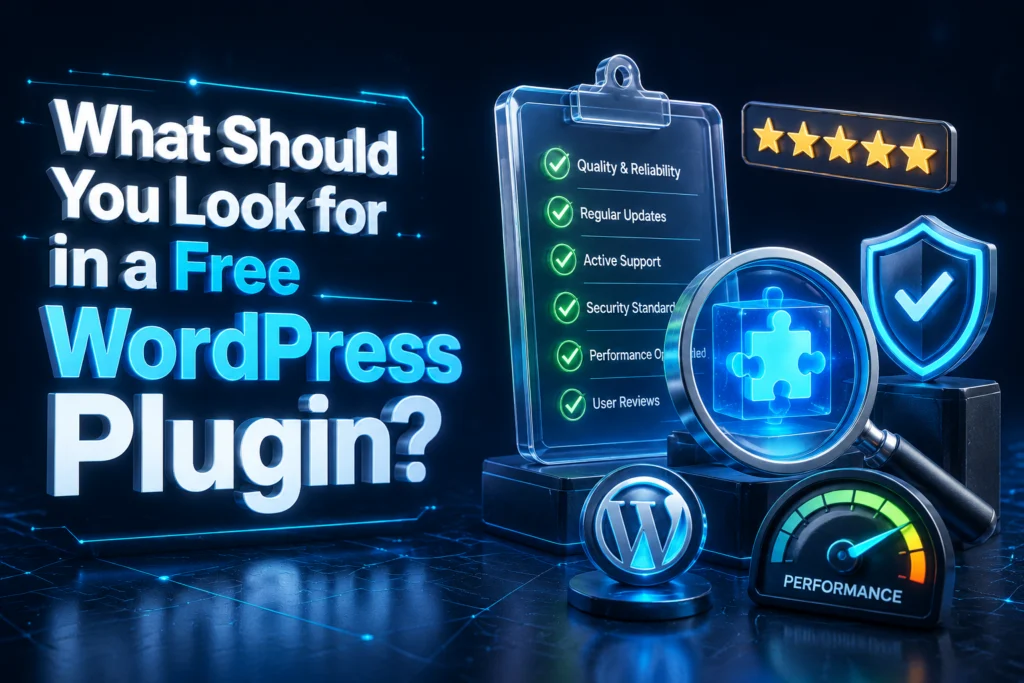
What Should You Look for in a Free WordPress Plugin?
Before installing any plugin, consider more than its star rating or number of active installations. A reliable plugin should ideally have:

- Regular updates
- Good user reviews
- Compatibility with your version of WordPress
- Clear documentation
- A trustworthy developer or company
- A reasonable number of settings
- Responsive support channels
- No unnecessary features that duplicate other plugins
You should also check when the plugin was last updated and whether it has been tested with your current WordPress version.
Most importantly, avoid installing two plugins that perform the same core function. Two SEO plugins, two caching plugins, or two backup plugins can create conflicts and may negatively affect your website.
1. Rank Math SEO
Best for: On-page SEO, XML sitemaps, schema markup, and search optimization
Rank Math is one of the most popular free SEO plugins for WordPress. It gives website owners access to a wide range of optimization features without requiring an immediate upgrade to a premium plan.
The plugin can help you manage:
- SEO titles and meta descriptions
- XML sitemaps
- Open Graph metadata
- Focus keywords
- Schema markup
- Breadcrumbs
- Basic redirections
- Search Console integration
- Local SEO settings
- WooCommerce SEO features
Rank Math also includes an onboarding wizard that helps configure important SEO settings when you first install it. This is useful for beginners who are unsure how to set up titles, sitemaps, and indexing options.
One of its main advantages is that it brings many common SEO functions into one dashboard. However, that does not mean you should activate every available feature. Enable only what your website actually needs.
Important note
Use Rank Math or another SEO plugin, not multiple SEO plugins together. Yoast SEO and All in One SEO are also valid alternatives, but installing all three is unnecessary.
2. Redirection
Best for: Managing 301 redirects and monitoring 404 errors
Changing URLs is a normal part of website management. You may update an article, rename a page, remove an outdated product, or reorganize your website structure. The problem begins when old URLs continue to receive traffic or backlinks.
The Redirection plugin helps you create and manage redirects without editing your .htaccess file manually.
Useful features include:
- 301 redirects
- 404 error monitoring
- Redirect groups
- URL matching rules
- Redirect logs
- Import and export options
- Automatic redirects when post URLs change
A proper redirect sends visitors and search engines from an old URL to a relevant new URL. This helps preserve user experience and reduces the chance of losing valuable organic traffic.
Redirection is particularly useful after a website migration, permalink change, content cleanup, or domain move.
Best practice
Do not redirect every deleted page to your homepage. Redirect an old URL to the closest relevant page whenever possible. If no suitable replacement exists, a clear 404 page may be a better option.
3. Wordfence Security
Best for: Firewall protection, malware scanning, and login security
Website security should not be treated as an optional extra. Even small websites can become targets for automated attacks, brute-force login attempts, malicious scripts, and vulnerable plugins.
Wordfence Security is one of the best-known free security plugins for WordPress. Its features may include:
- Web application firewall protection
- Malware scanning
- Login attempt monitoring
- IP blocking
- Brute-force protection
- File change detection
- Security notifications
- Two-factor authentication options
The plugin can notify you when it detects suspicious activity or important security issues. It also provides security reports that help you understand what is happening on your website.
However, a security plugin is only one part of website protection. You should also use strong passwords, keep WordPress updated, remove unused plugins, and use reliable hosting.
Do not forget
Before making major security changes, create a backup. Security settings can sometimes interfere with legitimate users, third-party services, or administrator access.
4. UpdraftPlus
Best for: Scheduled backups and website restoration
A backup is one of the most important safety nets for any WordPress website. Websites can break because of plugin conflicts, hosting problems, incorrect updates, malware, human mistakes, or database errors.
UpdraftPlus allows you to create and manage WordPress backups from your dashboard. Depending on your configuration, you can back up:
- Website files
- Themes
- Plugins
- Uploads
- Database content
- Word- Themes
- Plugins
- Uploads
- Database content
- WordPress backup on your hosting account.
A useful backup strategy includes regular scheduled backups and at least one copy stored away from your main server. For a frequently updated blog or online store, more frequent backups may be appropriate.
Who should use it?
Almost every website owner should have a backup solution. This is especially important for websites that publish regularly, collect form submissions, sell products, or depend on organic traffic.
5. LiteSpeed Cache
Best for: Caching, page performance, and website optimization
Website speed affects both user experience and business performance. Visitors are less likely to stay on a slow website, especially on mobile devices.
LiteSpeed Cache is a powerful free plugin that can provide caching and performance optimization features such as:
- Page caching
- Browser caching
- CSS and JavaScript optimization
- Lazy loading
- Image optimization options
- Database cleanup
- CDN integration
- Media optimization
- Performance settings for WordPress
The plugin works particularly well on websites hosted on LiteSpeed servers. Some features may not work in the same way on Apache or Nginx hosting, so you should check your server environment before configuring it.
Caching settings can be powerful, but aggressive optimization may occasionally cause display problems. After activating important settings, test your homepage, menus, forms, checkout pages, and mobile layout.
Important warning
Do not run LiteSpeed Cache together with another full-page caching plugin unless you know exactly how the systems interact.
6. Autoptimize
Best for: Optimizing CSS, JavaScript, and HTML delivery
Autoptimize is another popular free plugin for improving frontend performance. It focuses mainly on optimizing and delivering website assets more efficiently.
It can help with:
- Aggregating CSS files
- Optimizing JavaScript
- Minifying HTML
- Deferring certain scripts
- Optimizing Google Fonts
- Lazy-loading images
- Removing unnecessary code in selected situations
The plugin can be useful when your hosting environment does not provide a complete caching solution. It may also complement a server-level cache, but its settings should be configured carefully.
Performance plugins are not “set and forget” tools. A change that improves one website may break another, depending on the theme, page builder, scripts, and integrations being used.
How to use it safely
Change one setting at a time and test the website after each change. If a layout, menu, slider, or form stops working, disable the most recent optimization setting and clear your cache.
7. Smush
Best for: Image compression and media optimization
Large images are among the most common causes of slow WordPress websites. Many website owners upload images directly from their phones or cameras without resizing or compressing them first.
Smush can help reduce image file sizes and improve media delivery. Its features may include:
- Image compression
- Bulk image optimization
- Lazy loading
- Automatic resizing
- Metadata removal
- Image size limits
- WebP-related optimization options, depending on the setup
Reducing image size can improve loading speed while preserving acceptable visual quality.
However, image optimization should begin before uploading files. Resize images to the dimensions actually required by your website and choose an appropriate format. A full-resolution photograph is rarely necessary for a small blog thumbnail.
A practical workflow
- Resize the image before uploading it.
- Rename the file descriptively.
- Compress it without noticeable quality loss.
- Add meaningful alt text.
- Avoid uploading several unused image sizes.
8. WPForms Lite
Best for: Contact forms, lead generation, and simple online forms
Most websites need at least one form. This might be a contact form, quote request form, newsletter signup form, consultation form, or support request form.
WPForms Lite provides a drag-and-drop interface that makes it easier to create forms without coding. It can be used for:
- Contact forms
- Lead forms
- Newsletter signup forms
- Request-a-quote forms
- Simple surveys
- Feedback forms
- Basic registration forms
The plugin is designed to be beginner-friendly and includes templates that can speed up the setup process.
When creating a form, request only the information you genuinely need. A form with too many fields can reduce completion rates. For most websites, name, email address, and message may be enough to start a conversation.
Important note
WPForms Lite is one of several form solutions. You probably do not need it alongside Contact Form 7 or another form builder.
9. WP Mail SMTP
Best for: Improving WordPress email deliverability
WordPress websites often send important emails, including contact form notifications, password reset messages, account emails, and order confirmations. Unfortunately, the default WordPress mail function may not deliver messages reliably.
WP Mail SMTP helps route website emails through a proper SMTP provider or supported mail service. This can improve deliverability and reduce the risk of messages disappearing into spam folders.
It is particularly useful if:
- Contact form emails are not arriving
- Password reset emails are delayed
- Your website emails frequently go to spam
- WooCommerce notifications are unreliable
- You use a custom domain email address
Installing an SMTP plugin does not guarantee perfect deliverability. You should also configure domain authentication records such as SPF, DKIM, and DMARC when your email provider supports them.
A simple test
After configuration, send test emails to different email providers. Check whether the messages arrive, whether the sender address looks correct, and whether the emails are marked as spam.
10. Site Kit by Google
Best for: Connecting Google services to WordPress
Site Kit by Google
Site Kit by Google is an official Word website to several Google services from one dashboard.
Depending on your setup, you can view information from:
- Google Search Console
- Google Analytics
- PageSpeed Insights
- AdSense
- Tag Manager
The plugin can be helpful for website owners who want a simple overview of search impressions, clicks, traffic sources, and performance data without manually adding multiple tracking snippets.
Site Kit is especially useful for beginners because it simplifies the initial connection process. It can also reduce the need to edit theme files when adding certain Google services.
Analytics reminder
Installing Site Kit does not automatically create a complete measurement strategy. You should still define important events, conversions, and goals based on what your website is trying to achieve.
11. WPCode
Best for: Adding code snippets without editing theme files
Many WordPress users eventually need to add a small code snippet. It might be a tracking script, a custom function, a header script, or a small adjustment to the WordPress dashboard.
WPCode makes it easier to add and manage snippets without directly editing the theme’s functions.php file.
Common use cases include:
- Adding header and footer scripts
- Inserting analytics code
- Creating simple PHP snippets
- Adding custom CSS or JavaScript
- Managing snippets separately from the theme
- Activating or deactivating code safely
This approach can be safer and more organized than placing every modification inside a theme file. It also helps preserve custom code when the theme is updated or replaced.
Use caution
Never paste code into your website unless you understand what it does or have verified it from a reliable source. A faulty snippet can break your website or create a security issue.
12. Broken Link Checker by AIOSEO
Best for: Finding broken internal and external links
Broken links can frustrate visitors and make website maintenance more difficult. They may also appear after deleting pages, changing URLs, moving content, or linking to websites that no longer exist.
Broken Link Checker by AIOSEO can help identify links that may need attention. Depending on the configuration, it can scan content and report:
- Broken internal links
- Broken external links
- Missing images
- Redirected URLs
- Unavailable resources
Regularly reviewing broken links is particularly important for large blogs, resource pages, affiliate websites, and websites with many old articles.
Better maintenance practice
Do not automatically replace every broken link with a random alternative. Review the context first. The best replacement should be relevant to the original topic and useful for the reader.
13. Duplicator
Best for: Website migration, cloning, and backup-related workflows
Duplicator is a useful tool for moving or copying WordPress websites. It can help with:
- Website migration
- Manual backups
- Website cloning
- Staging workflows
- Domain changes
- Hosting transfers
- Creating reusable website packages
This can be helpful when moving a website to a new hosting provider or creating a test copy before making major changes.
Duplicator and UpdraftPlus may overlap in certain backup-related use cases, so many website owners will not need both. Choose the tool that best matches your workflow.
When Duplicator may be the better option
Choose Duplicator when your main goal is moving, cloning, or packaging an entire website. Choose a traditional backup plugin when your priority is scheduled backups and easy restoration.
14. Contact Form 7
Best for: Lightweight, flexible contact forms
Contact Form 7 is one of the longest-standing free contact form plugins for WordPress. It is lightweight and flexible, making it suitable for users who want a simple form solution without a visual drag-and-drop builder.
It can support:
- Contact forms
- Custom form fields
- Multiple forms
- Email notifications
- Basic form validation
- Custom markup
The plugin may require more manual configuration than beginner-focused form builders. You may also need additional integrations for spam protection, styling, and advanced functionality.
Contact Form 7 is a good choice for developers and website owners who prefer control and simplicity. If you want a more visual interface, WPForms Lite or another modern form builder may be more convenient.
Security and spam protection
Use appropriate anti-spam measures and avoid exposing unnecessary personal information through form submissions.
15. MonsterInsights Lite
Best for: Viewing Google Analytics reports inside WordPress
MonsterInsights Lite helps website owners connect Google Analytics and view selected reports directly inside the WordPress dashboard.
It may help you understand:
- Traffic trends
- Top landing pages
- Referral sources
- User behavior
- Device categories
- Popular content
- Basic audience information
This can save time for users who do not want to navigate through the full Google Analytics interface every time they need a quick overview.
However, analytics data is only useful when connected to clear objectives. A blog may focus on engaged readers and email signups, while a business website may prioritize contact form submissions, phone calls, and qualified leads.
Site Kit or MonsterInsights?
For most websites, you do not need both plugins solely for basic analytics reporting. Choose the dashboard and features that best fit your workflow.
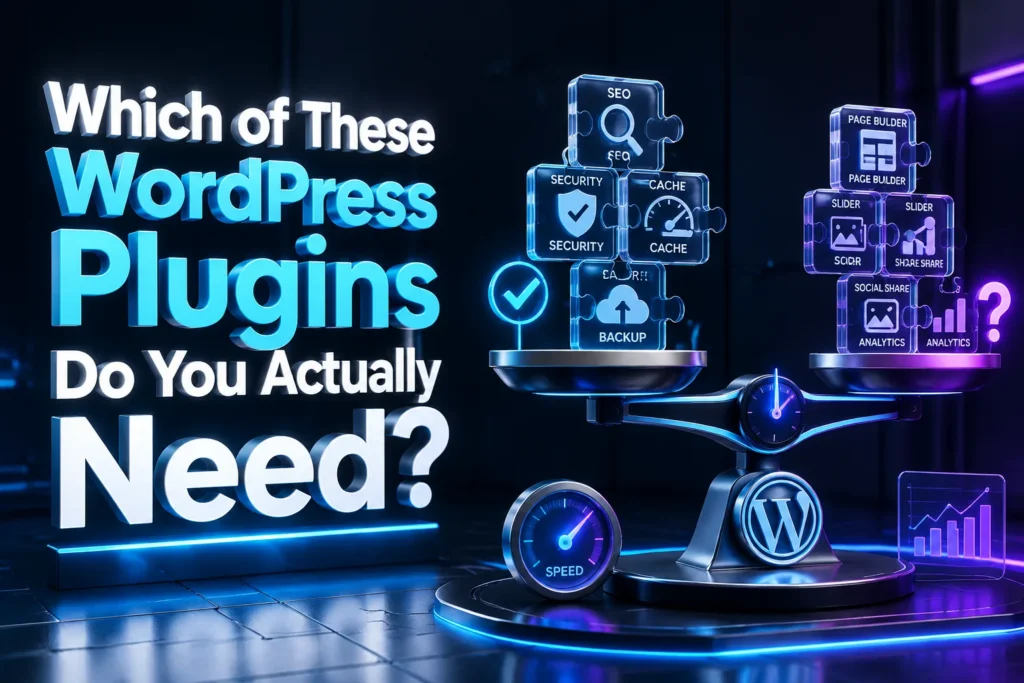
Which of These WordPress Plugins Do You Actually Need?
The answer depends on your website. A personal blog, local business website, portfolio, membership website, and online store will not require the same plugin stack.
Here is a practical starting point:
For a Basic Blog
Consider:
- One SEO plugin
- One caching or performance plugin
- One backup plugin
- One security plugin
- One analytics plugin
- One image optimization plugin
For a Small Business Website
You may also need:
- A form builder
- WP Mail SMTP
- Redirection
- A broken link checker
- WPCode for selected integrations
For an Online Store
You may need additional tools for:
- Product SEO
- Payment processing
- Shipping
- Customer accounts
- Product schema
- Transactional emails
- E-commerce analytics
Do not install a plugin simply because it appears on a popular list. First identify the problem you want to solve.
Plugins You Should Not Install Together
One of the most common WordPress mistakes is installing multiple plugins that perform the same function.
In most cases, avoid using:
- Rank Math and Yoast SEO together
- Two full-page caching plugins
- WPForms and Contact Form 7 for the same forms
- UpdraftPlus and Duplicator for identical backup workflows
- Site Kit and MonsterInsights solely for duplicate analytics reports
- Multiple image optimization plugins that compress the same files
More plugins do not automatically mean more functionality. In some cases, they create duplicate scripts, conflicting settings, database overhead, and confusing maintenance routines.
How to Install WordPress Plugins Safely
Before installing a new plugin, follow this simple process:
1. Create a Backup
A recent backup gives you a recovery option if the installation causes Check Compatibility
Review the plugin’s update history, WordPress compatibility’s update history, WordPress compatibility, support activity, and user feedback.
3. Install from a Reliable Source
Whenever possible, use the official WordPress Plugin Directory or the developer’s official website.
4. Activate Only the Features You Need
Many plugins include advanced settings that are not necessary for every website.
5. Test the Website
Check the homepage, navigation menu, forms, login page, mobile layout, and important landing pages.
6. Monitor Performance
Use tools such as PageSpeed Insights and Search Console to identify unexpected issues after installing or configuring a plugin.
7. Remove Unused Plugins
Deactivating a plugin is not always enough. If you no longer need it, delete it after confirming that it is not required by another feature.
Final Recommendation
The best WordPress website is not the one with the largest number of plugins. It is the one with a carefully selected set of reliable tools that solve real problems without adding unnecessary complexity.
The 15 plugins covered in this guide can help with the core areas of website management:
- SEO
- Redirects
- Security
- Backups
- Caching
- Image optimization
- Contact forms
- Email delivery
- Analytics
- Code management
- Broken links
- Website migration
You do not need to install all 15. Instead, choose one suitable plugin for each function your website genuinely requires.
Start with the basics: protect your website, create regular backups, improve performance, configure SEO properly, and make sure important emails and form submissions are delivered. As your website grows, you can add more specialized tools based on actual needs.
A lean, well-maintained WordPress plugin stack is usually better than a crowded dashboard full of overlapping solutions.