 weboxacademy | Premium WordPress Assets, SEO Training & Educational Videos
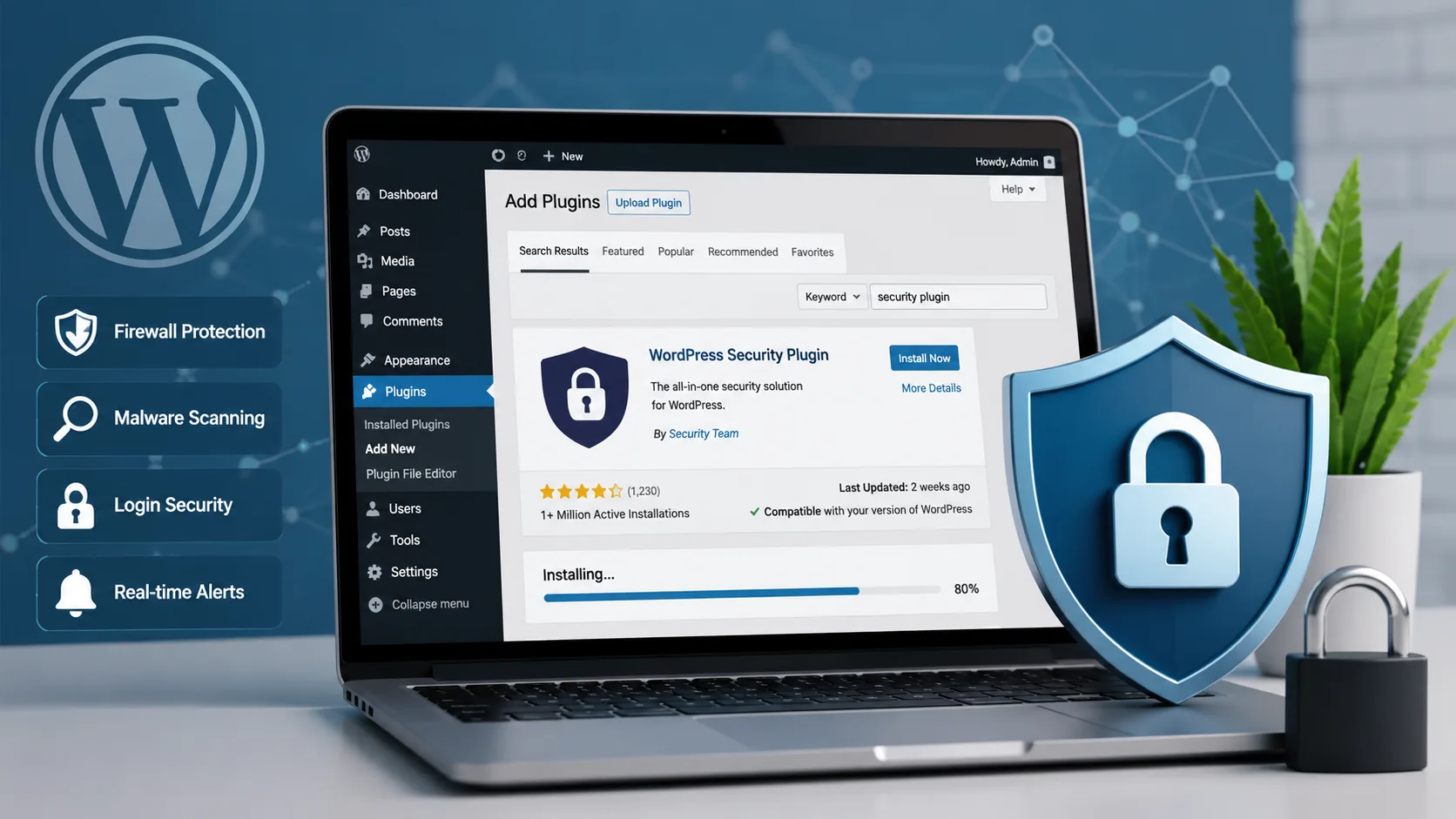
WordPress is flexible and easy to manage, but its popularity also makes it a common target for automated attacks, spam, brute-force login attempts, and malicious activity. A properly configured security plugin can help reduce these risks by adding features that WordPress does not provide by default.
If you are looking for a reliable way to install a security plugin on a WordPress website, the process is usually straightforward. The important part is choosing a suitable plugin, installing it from a trusted source, and configuring only the security features your website actually needs.
This guide walks through the process step by step.
Table of Contents
- Why Install a Security Plugin on WordPress?
- What Does a WordPress Security Plugin Do?
- Choose the Right Security Plugin
- How to Install a Security Plugin from the WordPress Dashboard
- How to Upload and Install a Premium Security Plugin
- Configure Your Security Plugin After Installation
- Important Security Features to Enable
- Common Mistakes When Installing Security Plugins
- How to Check Whether Your Security Plugin Is Working
- Additional WordPress Security Steps
- Frequently Asked Questions
- Final Thoughts
Why Install a Security Plugin on WordPress?
WordPress itself includes many built-in security features, but website security is not something that should depend on one layer of protection. Plugins can add additional monitoring, firewall rules, malware scanning, login protection, and security alerts.
For example, a security plugin may help you:
- Limit repeated login attempts
- Detect suspicious activity
- Block known malicious IP addresses
- Scan files for unexpected changes
- Monitor administrator activity
- Add firewall protection
- Improve login security
- Notify you about potential security issues
The right plugin depends on the size and purpose of your website. A small personal blog may need basic login protection and malware monitoring, while an online store may require more advanced firewall and activity-monitoring features.

What Does a WordPress Security Plugin Do?
A security plugin on WordPress adds extra protection around different parts of your website.
Most security plugins focus on one or more of the following areas.
Firewall Protection
A web application firewall can identify and block certain malicious requests before they cause problems. Depending on the plugin, the firewall may use predefined rules, threat intelligence, or cloud-based filtering.
Malware and File Scanning
Security scanners compare website files and look for suspicious code, modified files, or other unusual activity. A scan does not guarantee that every threat will be found, but it can help identify problems that require attention.
Login Security
Brute-force attacks attempt many username and password combinations automatically. Security plugins can reduce this risk by limiting login attempts, requiring stronger passwords, or supporting two-factor authentication.
Security Monitoring
Some plugins monitor changes to files, users, plugins, themes, and other important areas of the website. This can make it easier to notice suspicious activity.
Choose the Right Security Plugin for Your Website
Before installing anything, decide what you actually need.
A good WordPress security plugin should ideally have:
- Regular updates
- Active development
- Clear documentation
- Compatibility with your WordPress version
- Features appropriate for your website
- A good reputation within the WordPress community
Avoid installing several full security plugins at the same time. Multiple plugins may duplicate the same functions, create unnecessary server load, or cause conflicts.
For most websites, one main security plugin combined with strong WordPress maintenance practices is usually easier to manage than several overlapping security tools.
How to Install a Security Plugin from the WordPress Dashboard
Installing a plugin from the official WordPress dashboard is the easiest method.
Step 1: Log in to Your WordPress Dashboard
Open your WordPress administration area and sign in with an administrator account.
The dashboard is usually available through a URL similar to:
yourdomain.com/wp-admin
Make sure you are using a trusted administrator account and a secure password.
Step 2: Open the Plugins Section
From the left-hand WordPress menu, go to:
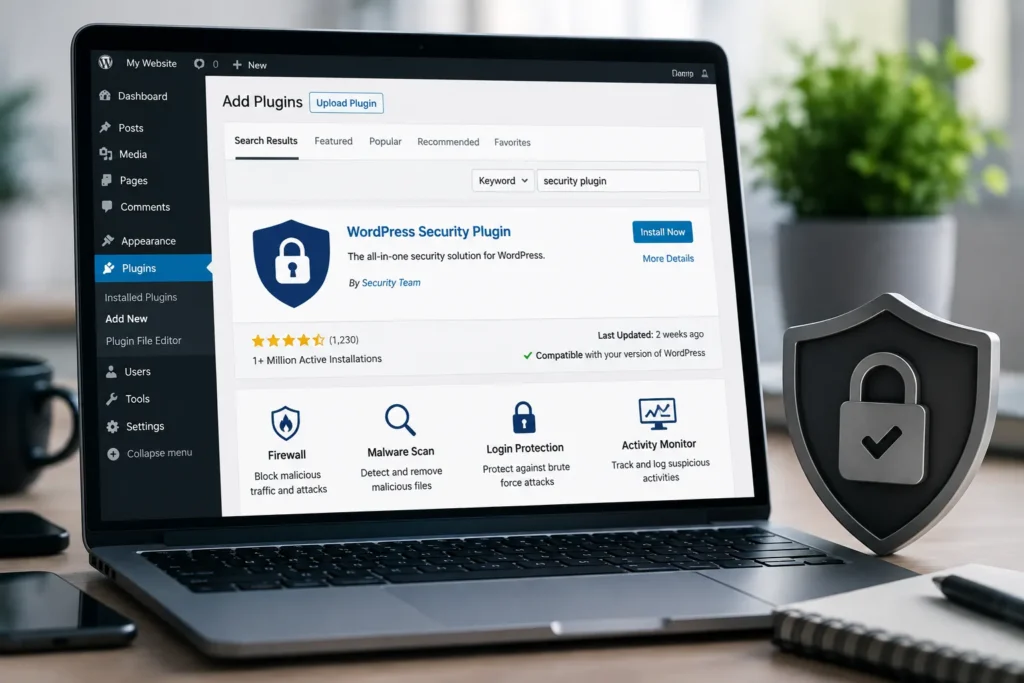
Plugins → Add New Plugin
This opens the WordPress plugin directory search page.
Step 3: Search for a Security Plugin
Use the search box to look for the security plugin you want to install.
Before clicking Install, check:
- The plugin name
- The developer or publisher
- Recent updates
- Compatibility information
- Available documentation
Do not install plugins from suspicious or unknown sources simply because they promise advanced security features.
Step 4: Click Install Now
Once you find the correct plugin, click the Install Now button.
WordPress will download and install the plugin automatically.
Depending on your hosting environment, this may take a few seconds.
Step 5: Activate the Plugin
After installation is complete, the Install button will change to Activate.
Click it to enable the plugin.
At this point, the plugin is installed, but the configuration process is just as important as installation.
How to Upload and Install a Premium Security Plugin
Premium security plugins are often downloaded as ZIP files from the developer’s official website.
To install one:
- Download the plugin ZIP file from the official source.
- Log in to your WordPress dashboard.
- Go to Plugins → Add New Plugin.
- Click Upload Plugin.
- Select the ZIP file.
- Click Install Now.
- Activate the plugin.
Do not extract the ZIP file unless the plugin developer specifically instructs you to do so.
After activation, you may need to enter a license key or connect the plugin to an account.
Configure Your Security Plugin After Installation
The default settings of a security plugin may not be ideal for every website.
After activation, review the available settings carefully.
Start with the most important areas:
- Firewall settings
- Login protection
- Malware scanning
- Security notifications
- Two-factor authentication
- File monitoring
- IP blocking rules
Avoid enabling every available feature without understanding what it does. Some aggressive settings can block legitimate users, administrators, APIs, payment gateways, or other services connected to your website.
A better approach is to start with recommended settings and make changes gradually.
Important Security Features to Enable
Login Protection
Enable login protection if your plugin supports it.
Useful options may include:
- Limiting failed login attempts
- Two-factor authentication
- Password strength requirements
- Blocking suspicious login activity
These features can help reduce unauthorized access attempts.
Firewall Rules
Enable the firewall according to the plugin’s recommended configuration.
Some plugins offer different protection modes. Read the description of each option before changing advanced settings.
Malware Scanning
Schedule regular scans when possible.
For smaller websites, weekly scans may be enough depending on the type of website and how frequently its content changes. Larger or higher-risk websites may require more frequent monitoring.
Security Alerts
Configure an email address for important security notifications.
However, avoid enabling unnecessary notifications for every minor event. Too many alerts can make it easier to miss a genuinely important warning.
Two-Factor Authentication
Two-factor authentication adds an additional verification step when logging in.
It is especially useful for:
- Website administrators
- Store managers
- Editors with elevated permissions
- Websites with multiple administrators
Common Mistakes When Installing Security Plugins
Installing a security plugin does not automatically make a website secure.
Here are some common mistakes.
Installing Multiple Security Plugins
Running several plugins with overlapping firewall or malware scanning features can cause conflicts.
Choose one primary security solution whenever possible.
Ignoring Plugin Updates
Security software must be updated regularly. An outdated plugin may fail to protect against newer threats and can sometimes introduce security risks of its own.
Using Weak Administrator Passwords
A security plugin cannot fully compensate for a weak password.
Use strong, unique passwords for administrator accounts.
Leaving Unused Plugins Active
Deactivate and remove plugins you no longer use.
Every unnecessary plugin increases the amount of software that must be maintained.
Ignoring Backups
Security and backups work together.
If something goes wrong, a recent and tested backup can make recovery much easier.
Do not rely on a security plugin as a replacement for a proper backup strategy.
How to Check Whether Your Security Plugin Is Working
After installation, open the plugin dashboard and look for:
- Firewall status
- Recent scans
- Security events
- Login activity
- Configuration warnings
- Recommended actions
If the plugin reports configuration problems, review them before assuming the website is fully protected.
You should also check whether important parts of your website still work correctly, including:
- Login and registration
- Contact forms
- Online payments
- WooCommerce checkout
- APIs
- Mobile browsing
- Administrator access
A security configuration that blocks legitimate website functions can create serious usability problems.
Additional WordPress Security Steps
A security plugin should be part of a larger security strategy.
Consider these additional practices.
Keep WordPress Updated
Update:
- WordPress core
- Plugins
- Themes
Before major updates, make sure you have a recent backup.
Use Trusted Plugins and Themes
Download plugins and themes from trusted developers and reputable sources.
Avoid nulled or modified premium plugins. These files can contain malicious code or unauthorized changes.
Remove Unused Accounts
Review WordPress users periodically.
Delete accounts that no longer need access and avoid giving administrator permissions when lower-level permissions are sufficient.
Use Secure Hosting
Website security also depends on your hosting environment.
Look for hosting that provides reliable server maintenance, account isolation where appropriate, SSL support, backups, and modern PHP versions.
Create Regular Backups
Maintain backups separately from your main website whenever possible.
A useful backup strategy should include both:
- Website files
- Database data
Most importantly, test your restoration process before an emergency happens.
A Simple Security Setup for Most WordPress Websites
For many small and medium-sized WordPress websites, a practical setup looks like this:
- Keep WordPress, themes, and plugins updated.
- Install one trusted security plugin.
- Enable login protection.
- Use strong, unique passwords.
- Enable two-factor authentication for administrators.
- Configure appropriate firewall protection.
- Schedule security scans.
- Maintain regular backups.
- Remove unused plugins and themes.
- Review security alerts regularly.
This approach is easier to maintain than installing many plugins and enabling dozens of features that nobody monitors.
Frequently Asked Questions
Do I need a security plugin on WordPress?
A security plugin can provide useful additional protection, monitoring, and login security. The exact need depends on your website, hosting, and existing security setup, but many website owners benefit from having one well-maintained security solution.
Can I install more than one security plugin?
You can, but it is usually not recommended when the plugins provide overlapping firewall, scanning, or login protection features. This can create conflicts and unnecessary server usage.
Are free WordPress security plugins enough?
A free plugin may be sufficient for some websites, especially when combined with good security practices. Premium plans can provide additional features, support, or advanced protection depending on the provider.
Will a security plugin slow down my WordPress website?
Some security features use server resources. The impact depends on the plugin, configuration, hosting environment, and website size. Avoid unnecessary scans or overlapping security tools.
How often should I scan my WordPress website?
The appropriate frequency depends on your website. Websites with frequent changes, customer accounts, or e-commerce activity may need more regular monitoring than a small static website.
Can a security plugin remove all malware?
No security solution can guarantee the detection or removal of every threat. If a website is seriously compromised, professional cleanup and investigation may be necessary.
What should I do after installing a security plugin?
Review the plugin’s setup recommendations, configure login protection and notifications, check firewall settings, and make sure your website still functions correctly.
Final Thoughts
Installing a security plugin on WordPress is usually easy. The more important part is maintaining a sensible security strategy after installation.
Choose one reliable security solution, configure it carefully, keep WordPress updated, use strong login credentials, and maintain regular backups. Security is not a one-time task. A website needs ongoing maintenance and monitoring.
Instead of trying to enable every possible security feature, focus on the protections that address the real risks for your website. A simple, well-maintained setup is often more effective than a complicated configuration that no one regularly checks.